've discussed the advantages of installing an SSD while also keeping your large hard drive in The Best of Both Worlds: An SSD and a HDD. I've also explained how to Move your libraries to an external drive without messing things up--important with most laptops when you switch to an SSD.
But I confess: I never covered the basic job of moving your Windows
installation from a large-capacity hard drive to a faster but more
limited SSD. I'll fix that right now.
[Email your tech questions to answer@pcworld.com.]
The best way to move an existing Windows installation, along with all of
the installed programs, is to clone the drive. But cloning normally
copies everything on one drive to the other. That doesn't work if you
have 800GB of files and only 120GB of new storage.
What you need is cloning software smart enough to let you pick what files and folders you don't want on the new drive.
Such software might come with your SSD. But in my experience, bundled
SSD cloning software leaves a lot to be desired. I haven't tried every
such program by a long shot, so if your new SSD comes with cloning
software, give it a try.
Of course, you'll have to connect the SSD to your PC. See How to upgrade to a larger hard drive for instructions on that part of the job.
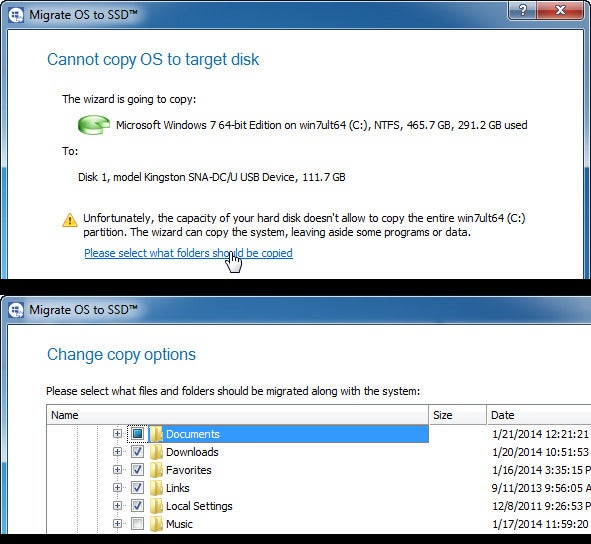
If the SSD didn't come with bundled software, or if it wasn't any good, I suggest you shell out an extra $20 for Paragon Migrate OS to SSD.
Yes, that's a lot of money for a program you'll only use once, but it's
worth it. Migrate allows you to select which files and folders will and
will not be copied to the new drive.
When the cloning is done, set your PC to boot from the SSD. Keep the old
hard drive around, either in the PC or externally in a SATA-USB
enclosure, for storing the files you exempted from the cloning and
others that won't fit on the SSD.

 06:38
06:38
 By
Unknown
By
Unknown




0 comments: