
How to make the Windows desktop look good on high-DPI displays
 07:03
07:03
 By
Unknown
By
Unknown


Finally some laptop manufacturers are getting with the program. Apple’s Retina Display MacBooks, Toshiba's Kirabooks, and Lenovo's IdeaPad Yoga line—just to name a few—are all offering laptops with crisp, pixel-packed displays, and it’s clear that it won’t be long before all high-end laptops include high-DPI screens.
Unfortunately, Windows isn’t totally equipped to deal with high-density displays out of the box. If you’re new laptop isn’t as crisp as you expected, or it’s difficult to work with the user interface, it might be your operating system that’s at fault. Here are five things you can do to make sure Windows is set up to take advantage of your high-density display.
Use global scaling
One of the main problems with a high-density display is that most software was designed back when high resolution automatically meant a huge display. If you take a program designed for a 24 inch monitor and shrink it down to 11 inches without changing anything, buttons and text and other UI elements are going to look absolutely tiny on the screen.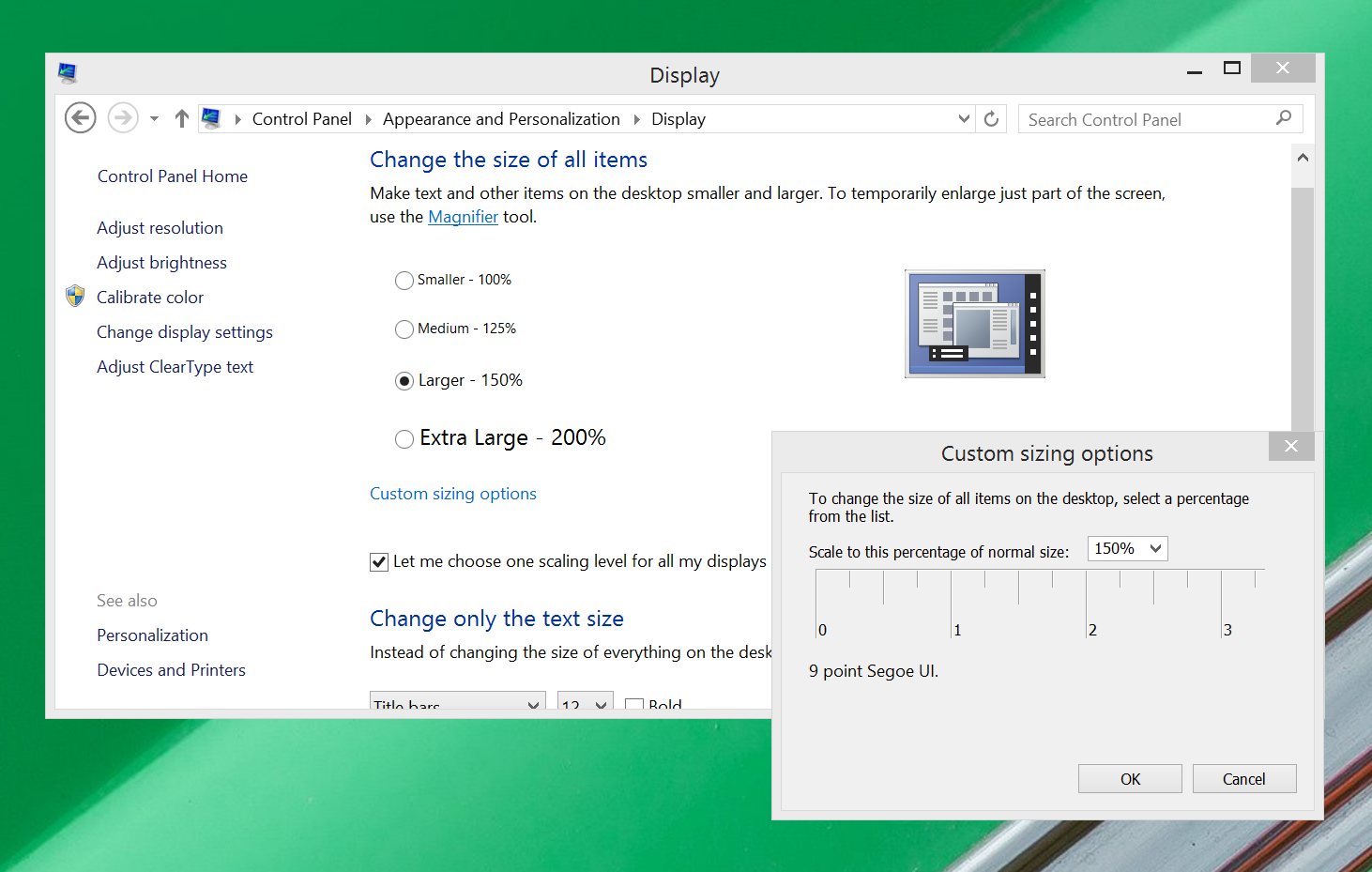
To configure it, just open the Control Panel, then click on Display > Custom Sizing Options. You’ll see a simple options window with a zoom percentage selector and a ruler. You can select a percentage manually, or click and drag on the ruler to decide how much to zoom in. The idea of the ruler is that you can hold an actual physical ruler up to your display, then adjust the virtual ruler until they match, and that will give you an appropriate amount of zoom—though of course you’re free to use more or less as your own preferences and eyesight dictate.
If you’re happy with general UI size, but want just text to be a little bigger system-wide, you can make that change at the bottom of the main Display options window.
Set exceptions
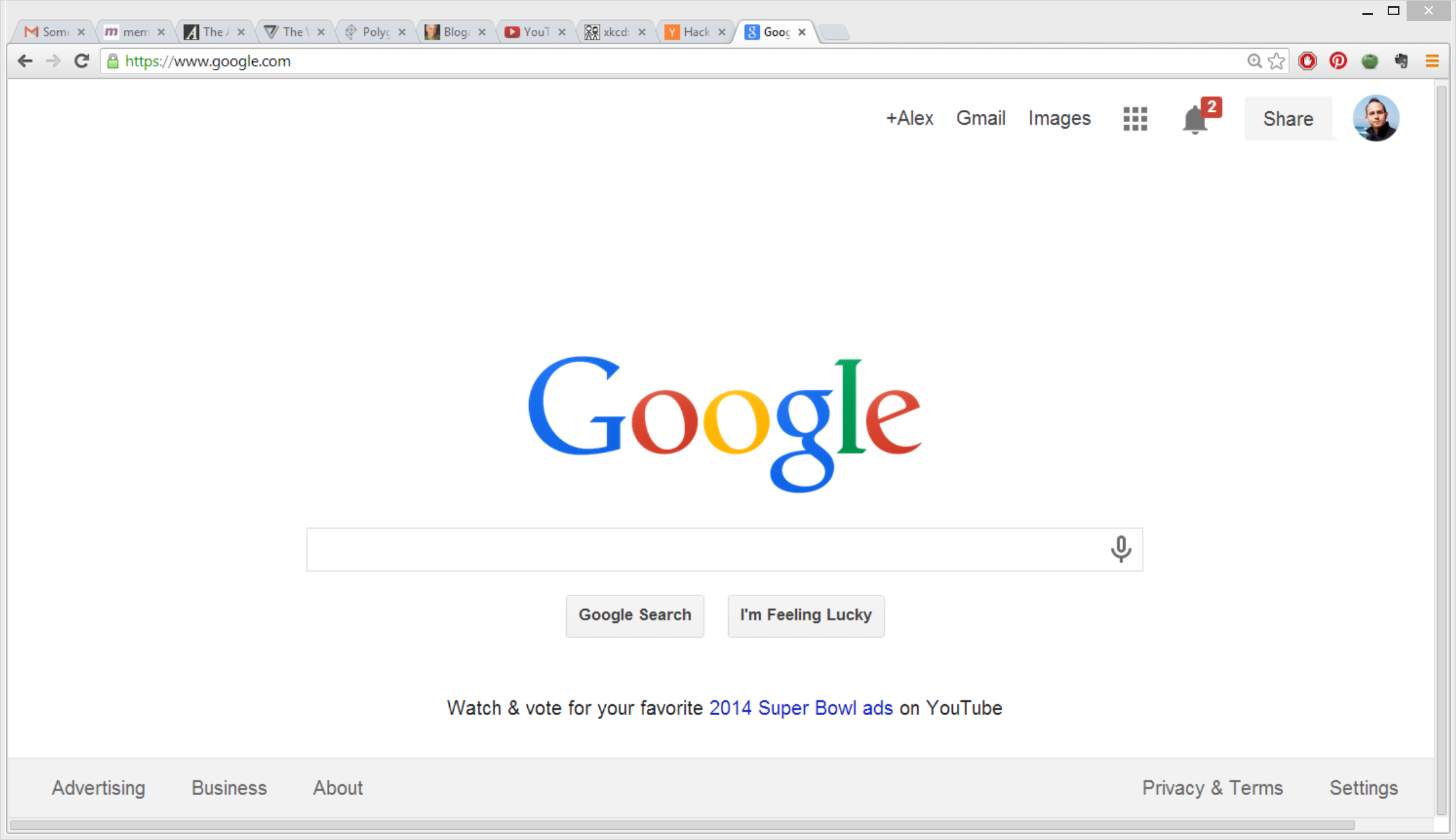
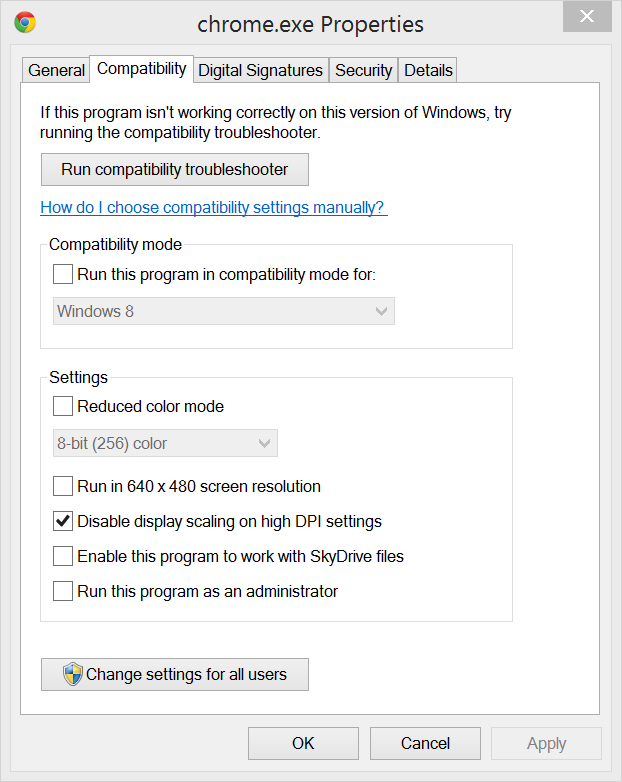
To do so, simply track down the executable file for the program in question—Google Chrome’s is located by default at C:/Program Files(x86)/Google/Chrome, for instance—then right-click on it and select Properties. Then click on the Compatibility tab and check the box labelled “Disable display scaling on high DPI settings.”
Increase icons sizes
A simple way to make your computer more high-density-friendly is to change how your icons and folders display, so that they use the high-resolution large or extra-large icons. To do this, just right-click on the desktop or any folder in Explorer, and mouse over View, then choose Large or Extra Large icons.If you’d like to keep using the list view in Explorer, but want to take advantage of the extra space your high-density display affords you, you can enable the preview pane by hitting Alt + P. This pane is great for getting more details about individual files.
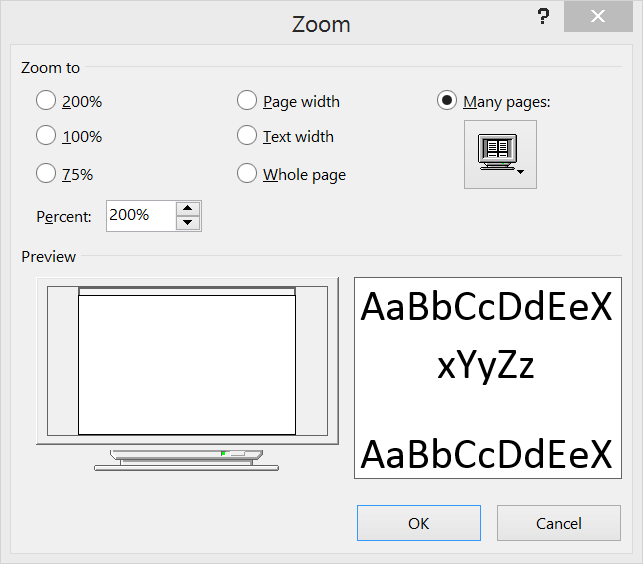
Use manual zoom
Upgrade to Windows 8.1
Finally, you should upgrade to Windows 8.1 if you haven’t already. The free upgrade to Windows 8 includes a number of new features designed to benefit high-density displays. New features include the ability to increase UI scaling all the way up to 200% and automatic scaling adjustment for multiple monitors, so you can pair a regular-density external monitor with your high-DPI laptop, and both will receive the appropriate amount of scaling.
Written by Admin
ChromeGT is a modern, powerful and professional Blogger template made for your Portfolio, Business or almost any other kind of website.


0 comments: