German court rejects 1.6 billion euro lawsuit filed against Apple

MANNHEIM, Germany (Reuters) - A German court on Friday dismissed a lawsuit filed against Apple by German patent manager IPCom claiming 1.57 billion euros in damages.
The claim concerned a mobile telephone patent that enables mobile phones to make emergency calls even when networks are overloaded.
(Reporting Peter Maushagen; Writing by Thomas Atkins; Editing by Maria Sheahan)

0 comments:

Gadget Watch: Fastlane in Nokia X shows promise

BARCELONA, Spain (AP) — By design, Nokia's new Android smartphones will underwhelm users of high-end phones. The Nokia X line was created with emerging markets in mind, so the company emphasized keeping prices low, meaning the user interface is relatively simple.
The home screen resembles the one on Nokia's Windows-based Lumia phones, even though it's Android underneath. But Nokia Corp. added a Fastlane feature, a screen with quick access to your most-used apps. You get to it by swiping from the left or right edge of the home screen or tapping the back button at the bottom.
The basic Nokia X phone costs 89 euros ($122) and has a 4-inch screen, measured diagonally, and a 3 megapixel camera. A X+ version with an SD storage card costs 99 euros, while an XL with a 5-inch screen and 5 megapixel camera goes for 109 euros.
In the brief time I've had with the Nokia X at this week's Mobile World Congress wireless show in Barcelona, Spain, I have found the Fastlane feature to be a good start. It's something I would like to see on more phones, including Nokia's Windows devices.
I hate to spend time customizing gadgets, getting the icons for the most-used apps on the main home screen. The nice thing about Fastlane is that you don't have to spend any time on that. Your favorite apps are just one swipe away — sort of.
The top of Fastlane shows you what's coming up, whether that's alarms about to ring or future events in your calendar. Below that are your recently used apps. The ones you just used will be at the top, so you don't have to scroll down.
For some apps, you get information that normally comes with notifications, such as previews of text messages or alerts that three people have tried to reach you on WeChat, a Chinese social network. You see small versions of recent photos and can tap for the larger version in the photo gallery app. You see calls you missed, songs you heard and websites you visited.
It could get overwhelming, so you can block certain apps and certain notifications from appearing in Fastlane. In the settings, you can also add a shortcut to one social network, such as Facebook or Twitter.
That's where Fastlane can improve — understanding better which apps I use most over a period of days or months and creating a section at the top for those.
This week, for example, I was too busy to check Facebook, but that doesn't mean I don't use it regularly. But in Fastlane, Facebook would drop toward the bottom in a matter of days, unless I happen to choose it as my one shortcut.
Why not make sure the most-used apps are stored as favorites at the top of the screen? Nokia says it's considering that.
Likewise, if I haven't used something for months after using it daily, Fastlane can assume I've grown tired of it and automatically remove it. Myspace anyone?
Nokia doesn't plan to make Fastlane for its Windows phones, and I doubt it'll extend it to rival Android phones, such as my Samsung Galaxy S III. It's something it wants to keep exclusive to its own phones to compete.
That's understandable, yet a shame.

0 comments:

Use Windows' sorting options to find just the right file

Use Windows' sorting options to find just the right file

One of the biggest pains of using a PC is rooting around the file system to find very specific information.
Over the years, Microsoft has made it easier to find files with enhanced search capabilities for finding that one Word document, photo, or video you need. Search is great when you're looking for a specific file by name, but sometimes you don't care about words. Sometimes, you're looking for the largest video file in your collection, or the most recently modified Word document in your OneDrive folder.
That's where File Explorer's View menu comes in handy.
fileexplorer
Windows 8's View menu.
By default, File Explorer lists your files and folders in ascending alphabetical order from A to Z. But let's say you want to group all the files in your Documents folder a more helpful way—say, so you can see how many spreadsheets you have.
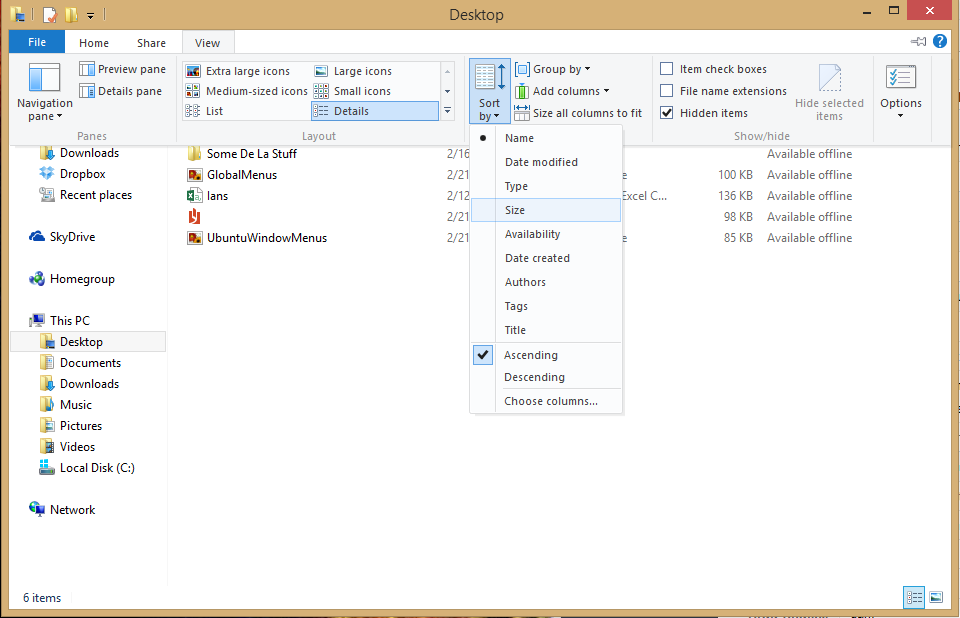
At the top of Windows 8's File Explorer window, click on View > Sort by > Type. (Windows 7 users can view the sort menu by right-clicking in an empty part of the folder window.) If you have a lot of folders you won't see much of a difference at first since, File Explorer always lists folders before loose files.
Scroll down, however, and you'll see all your files grouped by their file type such as HTML, text, Excel, Word, XLS, PDF, and so on.
Now you can quickly scroll down to the spreadsheet section to find what you're looking for. To revert File Explorer back to a straight alphabetical list just click View > Sort by > Name.
Some of the options lend themselves well to more productive sorting. File Explorer provides view options for date modified, size, date created, who created the file, and reverse alphabetical order, for example—all of which can help you put your finger on very specific files.
So the next time you're looking for a file and searching by name just won't do, give File Explorer's View menu a shot.

0 comments:

Microsoft to end support for Windows XP in 28 days

To drive adoption of its newer operating systems, Microsoft has announced the end of support for the popular Windows XP from April 8, 2014. The US-based technology giant said continued usage of the OS -- one of the most successful software from the company -- will not only make Indian firms vulnerable to security threats but also triple their annual maintenance cost per PC to USD 300.
The company on Tuesday said the installed ‘Windows XP’ PC base for large enterprises is about 4 million units in India, of which around 84 per cent have migrated from the operating system.
“We want every PC in India to move away from Windows XP before support ends on April 8, 2014. Our customers use Windows OS to run critical processes, which help them at work and in their lives. It is important for them to move from XP. At present about 84 per cent have stopped using this," Microsoft India Managing Director Karan Bajwa told reporters here.
Windows XP, which was launched in 2001, is three generations behind the latest operating system, Windows 8, that was launched in 2012. The Indian businesses have ‘28 working day’ to secure their IT environment and migrate from Windows XP to a higher version, the company said.
Of the 16 per cent still using Windows XP, share of BFSI segment and state-owned enterprises stands at 35 per cent each approximately, followed by manufacturing (17 per cent), communication sector (16 per cent) and IT-ITeS (6 per cent).
Mr. Bajwa said according to research firm IDC the cost of maintaining a PC that runs on Windows XP OS after April 8, could run up to USD 300 per PC per year as against the present cost of USD 75-100.
Moreover, with end of support, Windows XP computers will be a lot more vulnerable to security threats.
“This is a genuine threat to Indian businesses and it is worrying to see that many organizations in critical industries, for example banking, aren’t moving quickly enough,” Mr. Bajwa added.
As per the bi-annual Security Intelligence Report published by Microsoft, Windows XP installations are six times more likely to be infected by malware than Windows 8 machines.

0 comments:

Perfect Fit: Why the Samsung Gear Fit might be a hint of wristbands to come

It's way too early to get excited about a product that was just announced, and that I've barely had much time to play with. But Samsung's latest wearable, the Gear Fit, marks a territory that has been emerging since CES in January: half fitness band, half smartwatch, the little, curved-screen device looks like it's trying to be both a Pebble and a Fitbit...to have its wearable cake and eat it, too.

Samsung Gear Fit, hands-on (pictures)

1-2 of 13
Scroll Left Scroll Right
That's a great idea. In fact, it's an idea I was thinking of last year when the Fitbit Force arrived. Could slightly-smarter fitness bands be the "smartwatches" we've been waiting for? The Nike Fuelband is already a type of watch. And, based on this list of top smartwatch companies, the Smartwatch Group already considers the Fitbit Force and Fuelband as smartwatches: they tell the time, and they wireless connect to transfer data.
But, the Gear Fit really is smart...or promises to be. It'll receive notifications, track your heart rate, control music, and...well, do all the basic things most people think of when they think of "smart watch." A more fully-featured Gear 2 offers a camera, microphone, stand-alone music storage and the possibility of more apps, but are those features anyone's looking for? Maybe the Gear Fit is the magic in-between device that's...well...a better fit right now. It straddles the territory between fitness band and watch, understanding that most people will only buy one wrist gadget.
Samsung's not the only one. The Razer Nabu, LG Lifeband Touch, and Huawei TalkBand are all entering similar smarter-band territory. And maybe Apple's mythical iWatch could have some of these elements in common, too.
(Credit: CNET)
The Gear Fit's construction is also smart: because it has a pop-out design and different straps, it can morph its style instead of being wedded to one color or shape. It could even be adopted into a different type of wearable, theoretically: why not have it pop into a piece of clothing or another accessory?
I saw all of Samsung's products yesterday in New York. I went to sleep last night, talked about the products this morning, and realized that of all of them, the one I heard the most buzz about, read the most positive tweets about, was the Gear Fit. The price is still unknown, but if it stays competitive to the Nike/Fitbit/Withings landscape of fitness tech, I know which Gear I'd be most interested in.

0 comments:

How to get a job at Google


MOUNTAIN VIEW: Last June, in an interview with Adam Bryant of The New York Times, Laszlo Bock, the senior vice president of people operations for Google — i.e, the guy in charge of hiring for one of the world's most successful companies — noted that Google had determined that "GPAs are worthless as a criteria for hiring, and test scores are worthless. ... We found that they don't predict anything."
How to get a job at Google
Google attracts so much talent it can afford to look beyond traditional metrics, like GPA.

He also noted that the "proportion of people without any college education at Google has increased over time" — now as high as 14% on some teams. At a time when many people are asking, "How's my kid gonna get a job?" I thought it would be useful to visit Google and hear how Bock would answer.
Don't get him wrong, Bock begins, "Good grades certainly don't hurt." Many jobs at Google require math, computing and coding skills, so if your good grades truly reflect skills in those areas that you can apply, it would be an advantage. But Google has its eyes on much more.
"There are five hiring attributes we have across the company," explained Bock. "If it's a technical role, we assess your coding ability, and half the roles in the company are technical roles. For every job, though, the No. 1 thing we look for is general cognitive ability, and it's not IQ. It's learning ability. It's the ability to process on the fly. It's the ability to pull together disparate bits of information. We assess that using structured behavioral interviews that we validate to make sure they're predictive."
The second, he added, "is leadership — in particular emergent leadership as opposed to traditional leadership. Traditional leadership is, were you president of the chess club? Were you vice president of sales? How quickly did you get there? We don't care. What we care about is, when faced with a problem and you're a member of a team, do you, at the appropriate time, step in and lead. And just as critically, do you step back and stop leading, do you let someone else? Because what's critical to be an effective leader in this environment is you have to be willing to relinquish power."
What else? Humility and ownership.
"It's feeling the sense of responsibility, the sense of ownership, to step in," he said, to try to solve any problem — and the humility to step back and embrace the better ideas of others. "Your end goal," explained Bock, "is what can we do together to problem-solve. I've contributed my piece, and then I step back."
And it is not just humility in creating space for others to contribute, says Bock, it's "intellectual humility. Without humility, you are unable to learn." It is why research shows that many graduates from hotshot business schools plateau. "Successful bright people rarely experience failure, and so they don't learn how to learn from that failure," Bock said.
"They, instead, commit the fundamental attribution error, which is if something good happens, it's because I'm a genius. If something bad happens, it's because someone's an idiot or I didn't get the resources or the market moved. ... What we've seen is that the people who are the most successful here, who we want to hire, will have a fierce position. They'll argue like hell. They'll be zealots about their point of view. But then you say, 'here's a new fact,' and they'll go, 'Oh, well, that changes things; you're right.'" You need a big ego and small ego in the same person at the same time.
The least important attribute they look for is "expertise." Said Bock: "If you take somebody who has high cognitive ability, is innately curious, willing to learn and has emergent leadership skills, and you hire them as an HR person or finance person, and they have no content knowledge, and you compare them with someone who's been doing just one thing and is a world expert, the expert will go: 'I've seen this 100 times before; here's what you do.'" Most of the time the non-expert will come up with the same answer, added Bock, "because most of the time it's not that hard." Sure, once in a while they will mess it up, he said, but once in a while they'll also come up with an answer that is totally new. And there is huge value in that.
To sum up Bock's approach to hiring: Talent can come in so many different forms and be built in so many nontraditional ways today, hiring officers have to be alive to every one - besides brand-name colleges. Because "when you look at people who don't go to school and make their way in the world, those are exceptional human beings. And we should do everything we can to find those people." Too many colleges, he added, "don't deliver on what they promise. You generate a ton of debt, you don't learn the most useful things for your life. It's [just] an extended adolescence."
Google attracts so much talent it can afford to look beyond traditional metrics, like GPA. For most young people, though, going to college and doing well is still the best way to master the tools needed for many careers. But Bock is saying something important to them, too: Beware. Your degree is not a proxy for your ability to do any job. The world only cares about — and pays off on — what you can do with what you know (and it doesn't care how you learned it). And in an age when innovation is increasingly a group endeavor, it also cares about a lot of soft skills — leadership, humility, collaboration, adaptability and loving to learn and re-learn. This will be true no matter where you go to work.

0 comments:

How to force SkyDrive to store your files on your hard drive in Windows 8.1


There are a lot of great features in Windows 8.1 that make it well worth using, and Update 1 expected in the coming weeks sounds promising too.
But for traditional PC users with big hard drives one thing that may not be so great is how Windows 8.1 works with SkyDrive.
To make Windows 8.1's deep SkyDrive integration more usable on a tablet, Microsoft decided to store most of your SkyDrive documents in the cloud and only download them locally when you need them.
That makes sense if you only have 32GB or 64GB of storage on a slate, but with a laptop hard drive of 500GB or more, it's less of an issue. It also makes more sense to keep a local copy at all times if you're doing regular backups to an external hard drive at home.

How to make SkyDrive files available offline in Windows 8.1

If you want to make sure all your SkyDrive files are always available locally and sync back to the cloud, there are two ways you can do it.
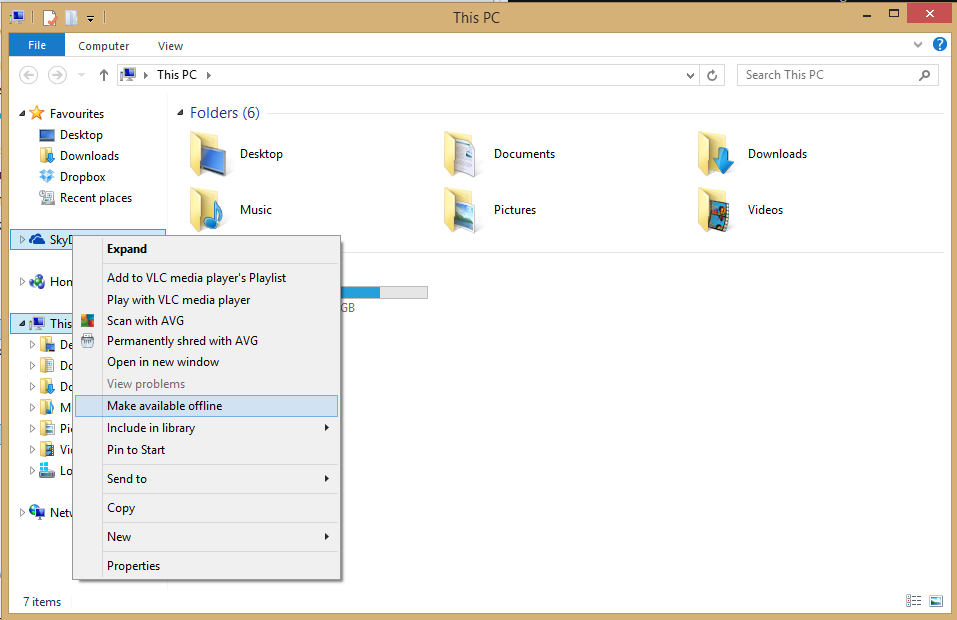
The first is to open File Explorer and then right-click the SkyDrive icon in the left-hand navigation column. In the context menu, select "Make available offline." That will force SkyDrive to download all of your cloud-stored files to the local machine. (Warning: It might take a while if you're stashing a lot of stuff in SkyDrive.)
skydriveclick
You can make sure all your SkyDrive files stay local right from File Explorer.
If you only want a specific set of files or folders available offline, you can also right-click them individually and select to make just those available offline. To tell which of your files are already available offline, look for the "Availability" column in the main window of File Explorer when perusing your SkyDrive data.
metro skydrive options
The second way to pull down your documents from the cloud is to open the SkyDrive modern UI app and then tap the Windows logo key + I to open the Settings charm. Next, select Options and click or tap the on/off slider to "On." There should be only one slider, but just to be clear the slider is labeled "Access all files offline."
Either way you choose, all your SkyDrive files are now available to you on your local drive.

0 comments:

How to make the Windows desktop look good on high-DPI displays


One of the most long-overdue trends in PC is the rise of high-pixel-density displays. For ages, computer monitors have gotten bigger and bigger, with only a minor increase in resolution to go along with it, meaning that we’ve been paying more to see a blurrier, more pixelated desktop.
Finally some laptop manufacturers are getting with the program. Apple’s Retina Display MacBooks, Toshiba's Kirabooks, and Lenovo's IdeaPad Yoga line—just to name a few—are all offering laptops with crisp, pixel-packed displays, and it’s clear that it won’t be long before all high-end laptops include high-DPI screens.
Unfortunately, Windows isn’t totally equipped to deal with high-density displays out of the box. If you’re new laptop isn’t as crisp as you expected, or it’s difficult to work with the user interface, it might be your operating system that’s at fault. Here are five things you can do to make sure Windows is set up to take advantage of your high-density display.

Use global scaling

One of the main problems with a high-density display is that most software was designed back when high resolution automatically meant a huge display. If you take a program designed for a 24 inch monitor and shrink it down to 11 inches without changing anything, buttons and text and other UI elements are going to look absolutely tiny on the screen.
custom sizing options
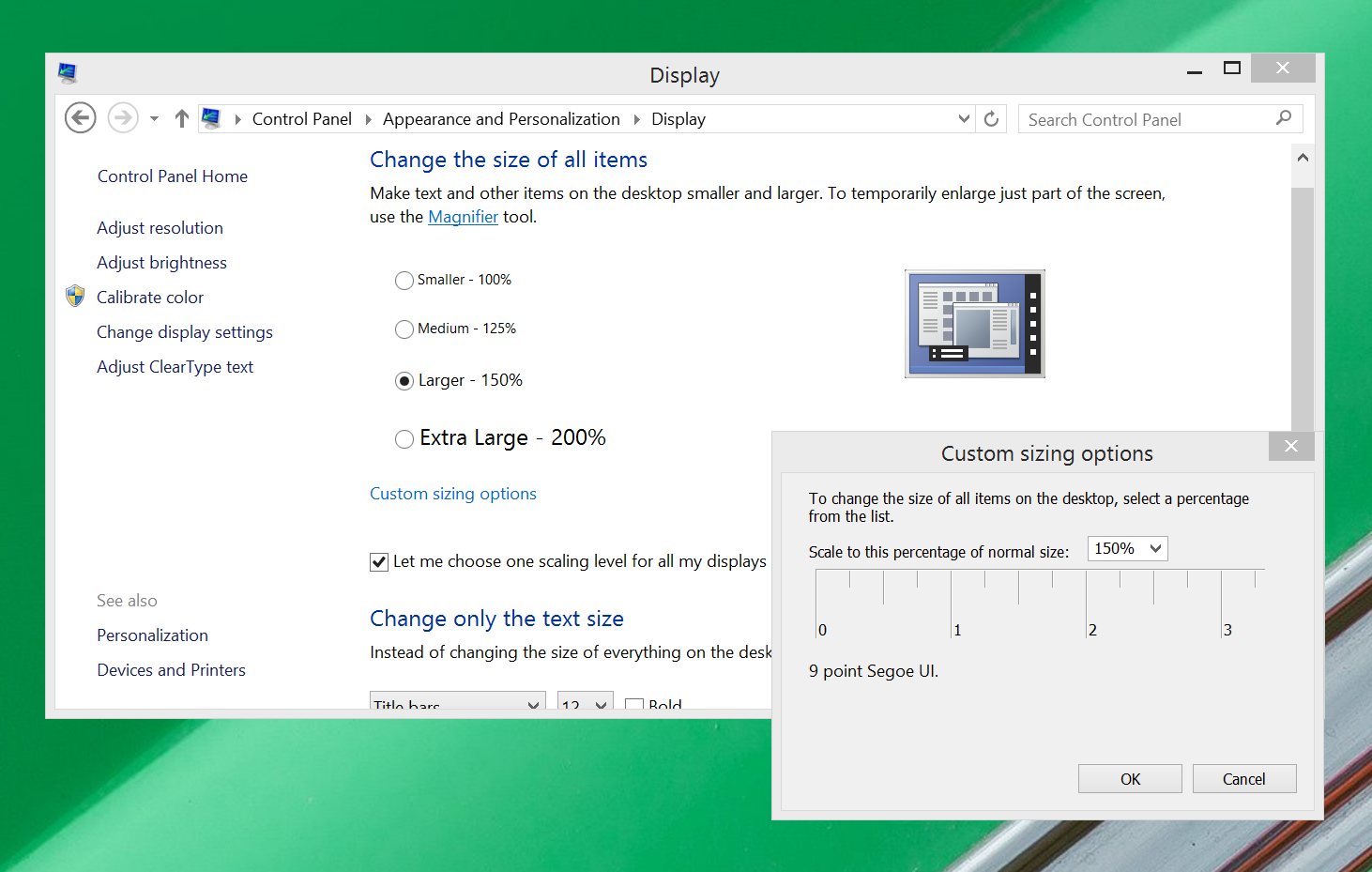
Windows' custom scaling utility.
The easiest way to fix this problem is with Windows’ system-wide scaling feature. This feature simply enlarges all programs and system UI elements.
To configure it, just open the Control Panel, then click on Display > Custom Sizing Options. You’ll see a simple options window with a zoom percentage selector and a ruler. You can select a percentage manually, or click and drag on the ruler to decide how much to zoom in. The idea of the ruler is that you can hold an actual physical ruler up to your display, then adjust the virtual ruler until they match, and that will give you an appropriate amount of zoom—though of course you’re free to use more or less as your own preferences and eyesight dictate.
If you’re happy with general UI size, but want just text to be a little bigger system-wide, you can make that change at the bottom of the main Display options window.

Set exceptions

chrome unfixed
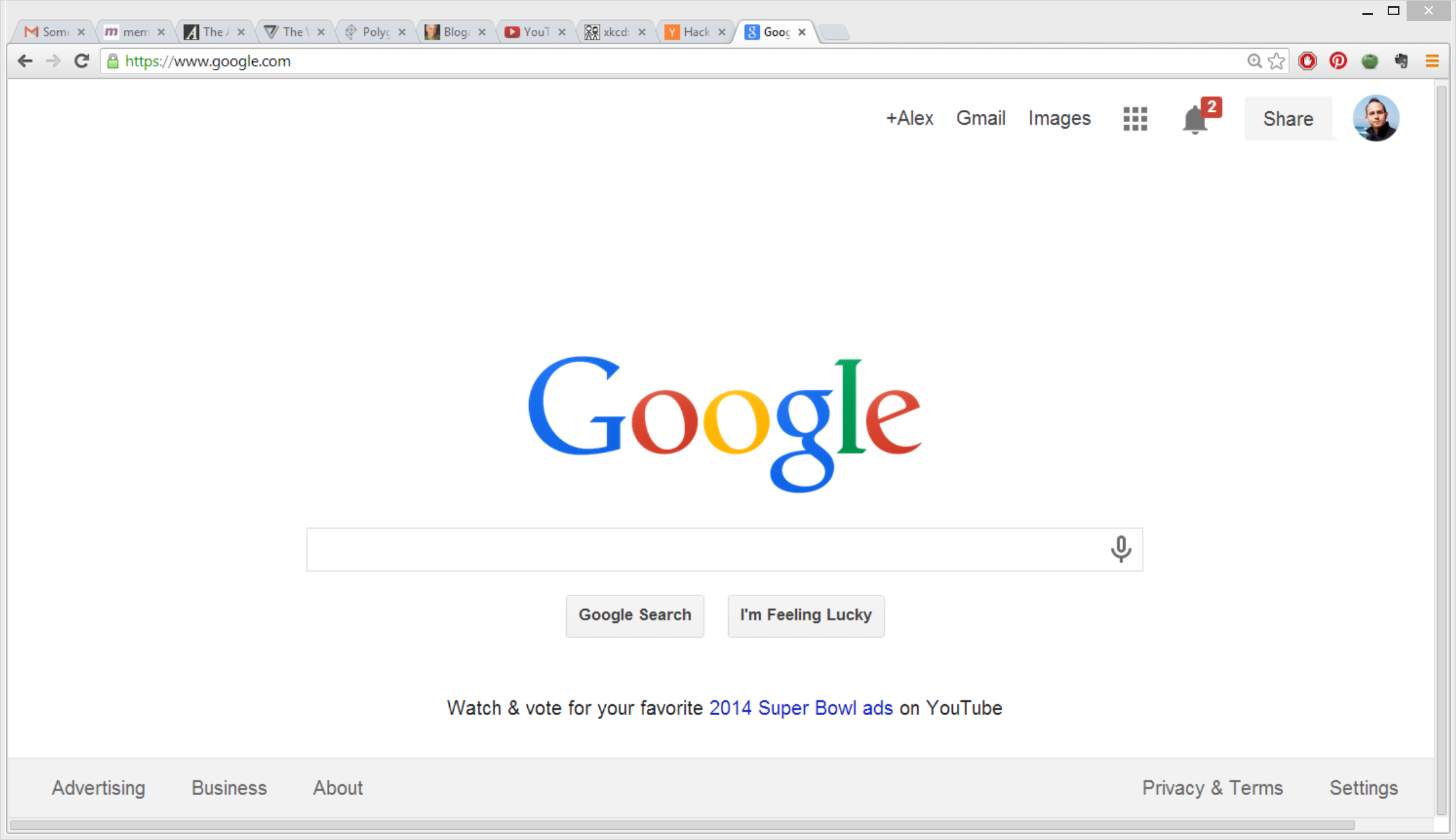
Chrome becomes a blurry mess when it's subjected to Windows' custom scaling, alas.
Unfortunately, the global scaling feature does not work well for every program. You might find that it makes some programs look ugly and blurry, or that it makes them too large. Worse, some applications are bugged when magnified by Windows. Google Chrome, for instance suffers from blurry text and a malfunctioning tabs bar when using the system-wide scaling.
chrome properties
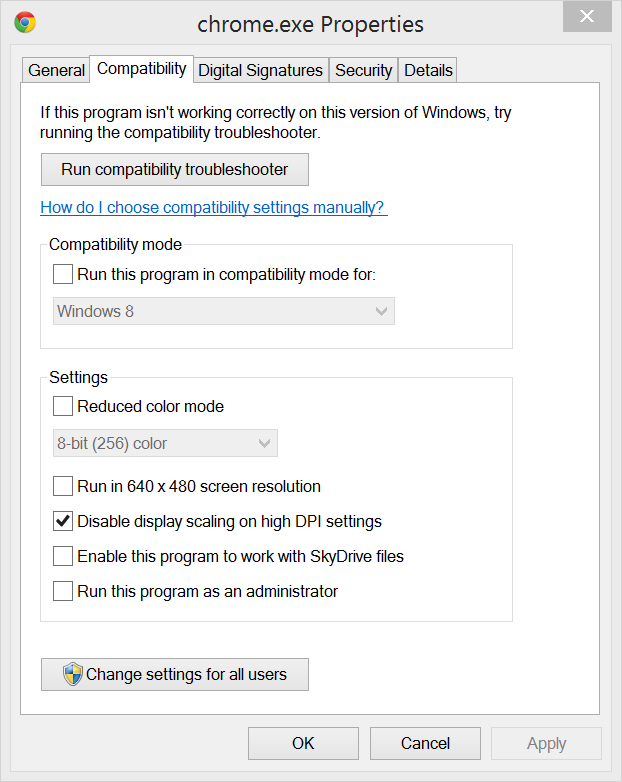
You can disable high DPI scaling in a program's property options, as shown here for Chrome.
Fear not! You don’t have to disable the very-useful scaling as a whole just for those few programs. Instead, you can make them an exception, so that the scaling is selectively not applied to them.
To do so, simply track down the executable file for the program in question—Google Chrome’s is located by default at C:/Program Files(x86)/Google/Chrome, for instance—then right-click on it and select Properties. Then click on the Compatibility tab and check the box labelled “Disable display scaling on high DPI settings.”

Increase icons sizes

A simple way to make your computer more high-density-friendly is to change how your icons and folders display, so that they use the high-resolution large or extra-large icons. To do this, just right-click on the desktop or any folder in Explorer, and mouse over View, then choose Large or Extra Large icons.
If you’d like to keep using the list view in Explorer, but want to take advantage of the extra space your high-density display affords you, you can enable the preview pane by hitting Alt + P. This pane is great for getting more details about individual files.

Use manual zoom

microsoft word zoom menu
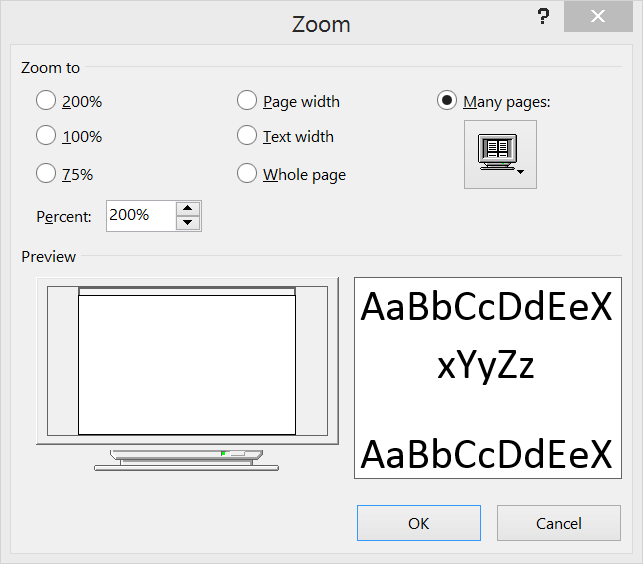
The Zoom options in Microsoft Word.
You should also know that many programs have a manual zoom feature that may be better implemented than the system-wide scaling. The near-universal keyboard shortcut for zoom is to hold down the Control key and turn the scroll wheel. You’ll find that this shortcut works in all web browsers, and most programs that involve editing any type of document.

Upgrade to Windows 8.1

Finally, you should upgrade to Windows 8.1 if you haven’t already. The free upgrade to Windows 8 includes a number of new features designed to benefit high-density displays. New features include the ability to increase UI scaling all the way up to 200% and automatic scaling adjustment for multiple monitors, so you can pair a regular-density external monitor with your high-DPI laptop, and both will receive the appropriate amount of scaling.

0 comments: